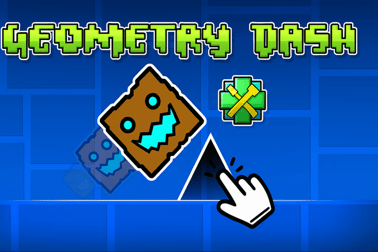
Geometry Dash Super Editor
Top MaxiGames
Geometry Dash Super Editor - Play Online
Introduction à Geometry Dash Super Editor
Geometry Dash Super Editor est un créateur de niveaux basé sur navigateur qui vous permet de concevoir, tester et jouer vos propres niveaux de style Geometry Dash directement en ligne. Au lieu de simplement parcourir des niveaux préfabriqués, vous devenez le créateur, utilisant un éditeur de niveau puissant pour placer des obstacles, des déclencheurs et des décorations dans n'importe quel motif que vous aimez.
Cette approche créative de la formule classique du jeu de plateforme d'arcade est parfaite pour les joueurs qui aiment expérimenter avec des niveaux de géométrie personnalisés, apprendre l'éditeur et partager des idées avec des amis. Que vous soyez tout nouveau dans la conception de niveaux ou déjà à l'aise avec les mécanismes de déclenchement avancés, Geometry Dash Super Editor vous donne les outils pour construire tout, des parcours d'entraînement simples aux cartes de défi intenses.
Parce qu'il fonctionne dans le navigateur, vous pouvez vous lancer rapidement : pas de téléchargement, pas de configuration, il suffit d'ouvrir et de commencer à construire. Cela le rend idéal pour de courtes sessions créatives, une utilisation en classe ou pour tester un nouveau concept avant de vous engager dans un niveau complet et soigné.
Contrôles de Geometry Dash Super Editor
Geometry Dash Super Editor combine les contrôles de jeu classiques de Geometry Dash avec une interface d'éditeur de niveau complète. Voici comment les deux parties fonctionnent pour que vous puissiez basculer facilement entre la création et le jeu.
Contrôles de jeu
- Bouton gauche de la souris / Espace / Flèche haut : Sautez, volez ou interagissez (selon la forme actuelle de votre personnage).
- Maintenir le saut : Maintenez le cube ou le vaisseau dans un état de saut/vol lorsque cela est pris en charge.
- R (pendant les tests) : Redémarrez le niveau depuis le début.
- Échap : Ouvrez le menu pause ou options.
Ces entrées simples vous permettent de concentrer votre conception de niveau sur le timing, le rythme et le placement des plateformes au lieu de combinaisons de boutons complexes.
Contrôles et saisie de l'éditeur
- Clic gauche de la souris : Select and place objects such as blocks, spikes, pads, orbs, portals, and triggers.
- Mouse Drag: Marquee-select multiple objects to move or edit them together.
- Right-Click (or hotkey): Delete or deselect objects, depending on editor settings.
- Scroll Wheel / Zoom Buttons: Zoom in and out of the level layout for precision.
- Arrow Keys / Middle-Mouse Drag: Pan the camera along the level to continue building further ahead.
- Hotkeys (common patterns):
- Ctrl + C / Ctrl + V: Copy and paste selected objects.
- Ctrl + Z / Ctrl + Y : Undo and redo actions.
- 1–9 (or editor toolbar): Switch between object categories quickly.
These controls are designed for fast iteration: place, test, tweak, and repeat until your custom levels feel just right.
Key Features
Geometry Dash Super Editor includes a robust set of tools that mirror many of the fan-favorite systems from the main series while staying lightweight enough for quick browser play.
- Full Level Editor: Lay out platforms, spikes, jump pads, orbs, portals, and triggers along a timeline-based grid.
- Trigger System: Use advanced trigger mechanics to control camera movement, object motion, colors, and special effects.
- Camera Movement Tools: Move, zoom, and follow the player with fine-tuned camera movement triggers for cinematic gameplay moments.
- Custom Difficulty: Build anything from easy practice maps to demon-style challenges by combining hazards and timing patterns.
- Instant Playtesting: Jump from the editor into the level with one click, fine-tune jumps, and quickly correct problem spots.
- Creative Freedom: Decorate with patterns, glow effects, and layered shapes to transform a basic layout into a visually impressive course.
- Browser-Based Convenience: Play and create online with no installation, perfect for school computers, shared devices, or quick sessions.
Together, these features turn Geometry Dash Super Editor into a compact but surprisingly deep level editor tutorial environment, letting you learn by doing instead of reading long manuals.
Performance & Troubleshooting
Geometry Dash Super Editor is optimized for web browsers, but since you're using an editor and real-time platformer engine together, performance can vary depending on your device and how complex your level is.
Improving Performance
- Reduce Decoration Density: Too many particles, glow objects, or constantly moving decorations can cause lag. Keep visual effects balanced with gameplay.
- Limit Simultaneous Triggers: Stacking many triggers on the same frame (especially camera movement tutorial setups or color flashes) can slow things down.
- Close Extra Tabs & Programs: Shut down background apps or heavy browser tabs when designing long or effect-heavy levels.
- Lower Browser Zoom: Using 90–100% browser zoom usually yields better performance than extreme scaling.
Common Issues & Fixes
- Game won't load: Make sure JavaScript is enabled, disable strict ad-blockers for the page, and refresh the browser.
- Input delay: Try a different browser (Chrome or Edge are often smoother) and disable any "gaming overlays" that may interfere.
- Level desyncs from music: If the level length is large and your device is slow, reduce decorations or shorten the level to keep music and gameplay aligned.
- Triggers not working: Double-check trigger order, IDs, and that their activation conditions line up with the player's path.
If your browser supports it, enabling hardware acceleration in settings can also keep both play and editing smooth.
Offline Play Availability for Geometry Dash Super Editor
Geometry Dash Super Editor is primarily designed as an online browser game. In most cases, you'll need an active internet connection to:
- Load the game engine and editor assets.
- Access any online save or share features the hosting site offers.
- Receive the latest bug fixes and improvements.
Some browsers may cache parts of the game, letting it load again briefly while offline, but this isn't guaranteed and usually doesn't support full editor functionality. For the best experience, plan to play and create Geometry Dash Super Editor online.
Because it's a browser-based title, everything stays on the website—no risky downloads, installers, or external files are required, which keeps it safer and more accessible for younger players and school environments.
How to Use the Super Editor to Build Your First Geometry Level
The best way to learn Geometry Dash Super Editor is by building a simple first project. This doubles as a hands-on level editor tutorial and teaches you the basic tools you'll reuse in every custom level.
Step 1: Start a New Level
- Open Geometry Dash Super Editor in your browser.
- Choose New Level or a similar option in the editor menu.
- Give your level a name that hints at its theme or difficulty, like "First Flight" or "Spike Basics."
Naming your level early helps you treat it like a real project instead of a throwaway test.
Step 2: Set Up a Simple Layout
- Use basic blocks to form a flat floor for the first few seconds of gameplay.
- Add a few spikes with clear gaps between them to teach jumping.
- Place a jump pad or orb later in the layout to introduce variety.
At this stage, don't worry about decoration; you're designing a playable skeleton that you'll polish later.
Step 3: Align with the Grid
Use the level grid as your guide. Keep the first obstacles aligned to whole grid units so your jumps are fair and predictable. This helps you build muscle memory for where safe jumps and danger spots usually sit.
Step 4: Test Constantly
- Press the Playtest button to jump into your level.
- Note exactly where you die or barely survive.
- Return to the editor and nudge blocks or spikes slightly to fix awkward timings.
Short, frequent tests are more helpful than building a huge map and trying to fix all the problems later.
Beginner Tips for Creating Fun and Playable Dash Levels
Once you've built your first simple layout, it's time to apply some beginner level design tips that make your levels enjoyable instead of frustrating.
1. Teach, Test, Challenge
Structure your level in simple phases:
- Teach: Show a new mechanic (like a yellow jump pad) in a safe context.
- Test: Make a slightly harder section using the same mechanic.
- Challenge: Combine it with something else (like spikes or a timing orb) later.
This pattern keeps players learning without overwhelming them.
2. Keep Visuals Clear
Better visibility makes your des niveaux de géométrie personnalisés feel smoother and fairer:
- Avoid blending spikes into the background too much.
- Separate hazards and decoration by using distinct colors or layers.
- Don't overload the screen with flashing lights right before a tight jump.
3. Use Checkpoints in Long Levels (If Available)
If the editor supports practice checkpoints or start position triggers, use them:
- Place a checkpoint after a difficult section to reduce grind.
- Use them yourself to test late-game jumps without replaying the entire opening.
4. Sync with Music
Even a basic level feels better when jumps match the music:
- Drop key obstacles on the beats of the song.
- Align new mechanics with noticeable changes in the track (like a chorus or drop).
- Use pauses in the music for short breaks or transitions.
Good sync is one of the fastest ways to make a simple layout feel professional.
Advanced Triggers, Camera Moves, and Visual Effects Explained
When you're comfortable with the basics, start exploring advanced trigger mechanics. These give you precise control over how the level feels and looks as the player runs through it.
Move & Rotation Triggers
- Move Triggers: Slide platforms or decorations across the screen. Perfect for moving hazards, shifting floors, or dynamic patterns.
- Rotation Triggers: Spin objects around a pivot point. Use these for rotating blades, spinning decorations, or subtle motion to add life.
Always test moving objects carefully so players can predict their movement and react in time.
Camera Movement Tutorial Basics
Camera control is one of the most powerful tools in Geometry Dash Super Editor:
- Follow Camera: Make the camera follow the player more loosely or tightly for dramatic effect.
- Camera Pan: Move the camera ahead to show an upcoming hazard or switch to a wide shot.
- Zoom In / Out: Zoom in for precision platforming or zoom out for large-scale visual moments.
Using camera moves carefully can make your level feel cinematic, but overuse can disorient players. Start with small pans and slow zooms before experimenting with fast swings or sudden shifts.
Color & Flash Triggers
- Background Color Triggers: Change the background color to match the music or signal a new phase.
- Object Color Triggers: Make spikes, blocks, or decorations shift colors over time.
- Flash / Fade: Briefly flash the screen or fade objects in and out for dramatic entries.
Subtle color changes feel smoother and more professional than constant, harsh flashes. Use them to guide attention instead of overwhelming the screen.
Best Practices for Balancing Difficulty and Level Design
Good levels are challenging but fair. Balancing difficulty is part art, part science, and Geometry Dash Super Editor gives you enough control to tune things precisely.
Start Easier Than You Think
Most creators accidentally build harder than they intend. A jump that feels comfortable to you will often be tough for first-time players. To balance difficulty:
- Widen early gaps and shorten spike clusters.
- Give players reaction time after portals and speed changes.
- Avoid stacking too many new ideas at once.
Use Checkpoints and Practice Layouts
If the engine supports practice or test modes, use them to simulate a new player's experience. Run the level from the beginning several times, not just from late checkpoints, and note where frustration builds.
Design Around Player Sightlines
Fair difficulty means:
- Hazards appear from the right edge clearly before they're lethal.
- Camera movement doesn't hide spikes or orbs behind decorations.
- Jump orbs and pads are placed where players expect them, not hidden unexpectedly.
This principle is especially important when you're using advanced camera movement and visual effects.
Iterate With Feedback
After you've tuned things yourself, let other people try the level. Note where they die most often and whether they blame themselves or the level. If everyone complains about the same blind jump or invisible spike, that's a sign to adjust the design.
How to Share, Test, and Improve Your Custom Levels Online
Once your level feels solid, it's time to put it out into the world. While sharing options depend on the specific site hosting Geometry Dash Super Editor, there are common patterns you can follow.
Saving and Exporting Levels
- Use the in-game Save feature frequently during creation.
- If the editor supports export codes or share links, copy these and store them somewhere safe.
- Keep version numbers in your level name or notes (v1, v1.1, v2) so you can track changes.
Online Testing & Feedback
To improve your designs faster:
- Share your level code or link with friends or in safe online communities focused on Geometry Dash.
- Ask for specific feedback: "Is the ship section too fast?" or "Are the camera moves distracting?"
- Watch players if possible (screenshare or recordings) to see where they struggle or get surprised.
Iterating on Player Feedback
- Fix clear issues first: unfair jumps, invisible hazards, or unreadable camera shifts.
- Then, polish visuals: cleaner colors, improved background transitions, reduced clutter.
- Finally, consider adding extra detail sections or alternate routes for advanced players.
Over time, this loop—create, test, share, refine—will sharpen both your technical skills with advanced trigger mechanics and your instincts for fun, fair level design.
Geometry Dash Super Editor is more than just a game; it's a creative platform. With consistent practice, attention to feedback, and smart use of tools like camera movement, triggers, and clear layouts, you'll be able to build des niveaux de géométrie personnalisés that feel as satisfying and memorable as the official ones—all right in your browser.
Questions fréquemment posées
Qu'est-ce que Geometry Dash Super Editor ?
Geometry Dash Super Editor est un jeu de navigateur qui vous permet de concevoir, tester et jouer vos propres niveaux de plateforme rythmiques à l'aide d'un éditeur de niveau approfondi.
Dois-je télécharger quelque chose pour jouer ?
Non, Geometry Dash Super Editor fonctionne directement dans votre navigateur. Il suffit d'ouvrir la page du jeu, d'attendre qu'il se charge et de commencer à créer ou jouer des niveaux.
Geometry Dash Super Editor convient-il aux débutants ?
Oui. L'éditeur propose des outils simples pour les dispositions de base et des options plus avancées comme les déclencheurs et le mouvement de caméra, de sorte que les débutants peuvent commencer petit et apprendre au fur et à mesure.
Puis-je tester mes niveaux personnalisés pendant l'édition ?
Oui. Vous pouvez rapidement basculer entre les modes édition et jeu pour tester les sauts, les timings et les obstacles, puis revenir à l'éditeur pour ajuster votre conception.
Geometry Dash Super Editor est-il adapté aux enfants ?
Oui. Le jeu est familial, axé sur la créativité, le timing et la conception de niveaux sans contenu violent ou mature.

Geometry Dash Super Editor
 (No Ratings Yet)
 Loading...
Introduction à Geometry Dash Super Editor
Geometry Dash Super Editor est un créateur de niveaux basé sur navigateur qui vous permet de concevoir, tester et jouer vos propres niveaux de style Geometry Dash directement en ligne. Au lieu de simplement parcourir des niveaux préfabriqués, vous devenez le créateur, utilisant un éditeur de niveau puissant pour placer des obstacles, des déclencheurs et des décorations dans n'importe quel motif que vous aimez.
Cette approche créative de la formule classique du jeu de plateforme d'arcade est parfaite pour les joueurs qui aiment expérimenter avec des niveaux de géométrie personnalisés, apprendre l'éditeur et partager des idées avec des amis. Que vous soyez tout nouveau dans la conception de niveaux ou déjà à l'aise avec les mécanismes de déclenchement avancés, Geometry Dash Super Editor vous donne les outils pour construire tout, des parcours d'entraînement simples aux cartes de défi intenses.
Parce qu'il fonctionne dans le navigateur, vous pouvez vous lancer rapidement : pas de téléchargement, pas de configuration, il suffit d'ouvrir et de commencer à construire. Cela le rend idéal pour de courtes sessions créatives, une utilisation en classe ou pour tester un nouveau concept avant de vous engager dans un niveau complet et soigné.
Contrôles de Geometry Dash Super Editor
Geometry Dash Super Editor combine les contrôles de jeu classiques de Geometry Dash avec une interface d'éditeur de niveau complète. Voici comment les deux parties fonctionnent pour que vous puissiez basculer facilement entre la création et le jeu.
Contrôles de jeu
- Bouton gauche de la souris / Espace / Flèche haut : Sautez, volez ou interagissez (selon la forme actuelle de votre personnage).
- Maintenir le saut : Maintenez le cube ou le vaisseau dans un état de saut/vol lorsque cela est pris en charge.
- R (pendant les tests) : Redémarrez le niveau depuis le début.
- Échap : Ouvrez le menu pause ou options.
Ces entrées simples vous permettent de concentrer votre conception de niveau sur le timing, le rythme et le placement des plateformes au lieu de combinaisons de boutons complexes.
Contrôles et saisie de l'éditeur
- Clic gauche de la souris : Select and place objects such as blocks, spikes, pads, orbs, portals, and triggers.
- Mouse Drag: Marquee-select multiple objects to move or edit them together.
- Right-Click (or hotkey): Delete or deselect objects, depending on editor settings.
- Scroll Wheel / Zoom Buttons: Zoom in and out of the level layout for precision.
- Arrow Keys / Middle-Mouse Drag: Pan the camera along the level to continue building further ahead.
- Hotkeys (common patterns):
- Ctrl + C / Ctrl + V: Copy and paste selected objects.
- Ctrl + Z / Ctrl + Y : Undo and redo actions.
- 1–9 (or editor toolbar): Switch between object categories quickly.
These controls are designed for fast iteration: place, test, tweak, and repeat until your custom levels feel just right.
Key Features
Geometry Dash Super Editor includes a robust set of tools that mirror many of the fan-favorite systems from the main series while staying lightweight enough for quick browser play.
- Full Level Editor: Lay out platforms, spikes, jump pads, orbs, portals, and triggers along a timeline-based grid.
- Trigger System: Use advanced trigger mechanics to control camera movement, object motion, colors, and special effects.
- Camera Movement Tools: Move, zoom, and follow the player with fine-tuned camera movement triggers for cinematic gameplay moments.
- Custom Difficulty: Build anything from easy practice maps to demon-style challenges by combining hazards and timing patterns.
- Instant Playtesting: Jump from the editor into the level with one click, fine-tune jumps, and quickly correct problem spots.
- Creative Freedom: Decorate with patterns, glow effects, and layered shapes to transform a basic layout into a visually impressive course.
- Browser-Based Convenience: Play and create online with no installation, perfect for school computers, shared devices, or quick sessions.
Together, these features turn Geometry Dash Super Editor into a compact but surprisingly deep level editor tutorial environment, letting you learn by doing instead of reading long manuals.
Performance & Troubleshooting
Geometry Dash Super Editor is optimized for web browsers, but since you're using an editor and real-time platformer engine together, performance can vary depending on your device and how complex your level is.
Improving Performance
- Reduce Decoration Density: Too many particles, glow objects, or constantly moving decorations can cause lag. Keep visual effects balanced with gameplay.
- Limit Simultaneous Triggers: Stacking many triggers on the same frame (especially camera movement tutorial setups or color flashes) can slow things down.
- Close Extra Tabs & Programs: Shut down background apps or heavy browser tabs when designing long or effect-heavy levels.
- Lower Browser Zoom: Using 90–100% browser zoom usually yields better performance than extreme scaling.
Common Issues & Fixes
- Game won't load: Make sure JavaScript is enabled, disable strict ad-blockers for the page, and refresh the browser.
- Input delay: Try a different browser (Chrome or Edge are often smoother) and disable any "gaming overlays" that may interfere.
- Level desyncs from music: If the level length is large and your device is slow, reduce decorations or shorten the level to keep music and gameplay aligned.
- Triggers not working: Double-check trigger order, IDs, and that their activation conditions line up with the player's path.
If your browser supports it, enabling hardware acceleration in settings can also keep both play and editing smooth.
Offline Play Availability for Geometry Dash Super Editor
Geometry Dash Super Editor is primarily designed as an online browser game. In most cases, you'll need an active internet connection to:
- Load the game engine and editor assets.
- Access any online save or share features the hosting site offers.
- Receive the latest bug fixes and improvements.
Some browsers may cache parts of the game, letting it load again briefly while offline, but this isn't guaranteed and usually doesn't support full editor functionality. For the best experience, plan to play and create Geometry Dash Super Editor online.
Because it's a browser-based title, everything stays on the website—no risky downloads, installers, or external files are required, which keeps it safer and more accessible for younger players and school environments.
How to Use the Super Editor to Build Your First Geometry Level
The best way to learn Geometry Dash Super Editor is by building a simple first project. This doubles as a hands-on level editor tutorial and teaches you the basic tools you'll reuse in every custom level.
Step 1: Start a New Level
- Open Geometry Dash Super Editor in your browser.
- Choose New Level or a similar option in the editor menu.
- Give your level a name that hints at its theme or difficulty, like "First Flight" or "Spike Basics."
Naming your level early helps you treat it like a real project instead of a throwaway test.
Step 2: Set Up a Simple Layout
- Use basic blocks to form a flat floor for the first few seconds of gameplay.
- Add a few spikes with clear gaps between them to teach jumping.
- Place a jump pad or orb later in the layout to introduce variety.
At this stage, don't worry about decoration; you're designing a playable skeleton that you'll polish later.
Step 3: Align with the Grid
Use the level grid as your guide. Keep the first obstacles aligned to whole grid units so your jumps are fair and predictable. This helps you build muscle memory for where safe jumps and danger spots usually sit.
Step 4: Test Constantly
- Press the Playtest button to jump into your level.
- Note exactly where you die or barely survive.
- Return to the editor and nudge blocks or spikes slightly to fix awkward timings.
Short, frequent tests are more helpful than building a huge map and trying to fix all the problems later.
Beginner Tips for Creating Fun and Playable Dash Levels
Once you've built your first simple layout, it's time to apply some beginner level design tips that make your levels enjoyable instead of frustrating.
1. Teach, Test, Challenge
Structure your level in simple phases:
- Teach: Show a new mechanic (like a yellow jump pad) in a safe context.
- Test: Make a slightly harder section using the same mechanic.
- Challenge: Combine it with something else (like spikes or a timing orb) later.
This pattern keeps players learning without overwhelming them.
2. Keep Visuals Clear
Better visibility makes your des niveaux de géométrie personnalisés feel smoother and fairer:
- Avoid blending spikes into the background too much.
- Separate hazards and decoration by using distinct colors or layers.
- Don't overload the screen with flashing lights right before a tight jump.
3. Use Checkpoints in Long Levels (If Available)
If the editor supports practice checkpoints or start position triggers, use them:
- Place a checkpoint after a difficult section to reduce grind.
- Use them yourself to test late-game jumps without replaying the entire opening.
4. Sync with Music
Even a basic level feels better when jumps match the music:
- Drop key obstacles on the beats of the song.
- Align new mechanics with noticeable changes in the track (like a chorus or drop).
- Use pauses in the music for short breaks or transitions.
Good sync is one of the fastest ways to make a simple layout feel professional.
Advanced Triggers, Camera Moves, and Visual Effects Explained
When you're comfortable with the basics, start exploring advanced trigger mechanics. These give you precise control over how the level feels and looks as the player runs through it.
Move & Rotation Triggers
- Move Triggers: Slide platforms or decorations across the screen. Perfect for moving hazards, shifting floors, or dynamic patterns.
- Rotation Triggers: Spin objects around a pivot point. Use these for rotating blades, spinning decorations, or subtle motion to add life.
Always test moving objects carefully so players can predict their movement and react in time.
Camera Movement Tutorial Basics
Camera control is one of the most powerful tools in Geometry Dash Super Editor:
- Follow Camera: Make the camera follow the player more loosely or tightly for dramatic effect.
- Camera Pan: Move the camera ahead to show an upcoming hazard or switch to a wide shot.
- Zoom In / Out: Zoom in for precision platforming or zoom out for large-scale visual moments.
Using camera moves carefully can make your level feel cinematic, but overuse can disorient players. Start with small pans and slow zooms before experimenting with fast swings or sudden shifts.
Color & Flash Triggers
- Background Color Triggers: Change the background color to match the music or signal a new phase.
- Object Color Triggers: Make spikes, blocks, or decorations shift colors over time.
- Flash / Fade: Briefly flash the screen or fade objects in and out for dramatic entries.
Subtle color changes feel smoother and more professional than constant, harsh flashes. Use them to guide attention instead of overwhelming the screen.
Best Practices for Balancing Difficulty and Level Design
Good levels are challenging but fair. Balancing difficulty is part art, part science, and Geometry Dash Super Editor gives you enough control to tune things precisely.
Start Easier Than You Think
Most creators accidentally build harder than they intend. A jump that feels comfortable to you will often be tough for first-time players. To balance difficulty:
- Widen early gaps and shorten spike clusters.
- Give players reaction time after portals and speed changes.
- Avoid stacking too many new ideas at once.
Use Checkpoints and Practice Layouts
If the engine supports practice or test modes, use them to simulate a new player's experience. Run the level from the beginning several times, not just from late checkpoints, and note where frustration builds.
Design Around Player Sightlines
Fair difficulty means:
- Hazards appear from the right edge clearly before they're lethal.
- Camera movement doesn't hide spikes or orbs behind decorations.
- Jump orbs and pads are placed where players expect them, not hidden unexpectedly.
This principle is especially important when you're using advanced camera movement and visual effects.
Iterate With Feedback
After you've tuned things yourself, let other people try the level. Note where they die most often and whether they blame themselves or the level. If everyone complains about the same blind jump or invisible spike, that's a sign to adjust the design.
How to Share, Test, and Improve Your Custom Levels Online
Once your level feels solid, it's time to put it out into the world. While sharing options depend on the specific site hosting Geometry Dash Super Editor, there are common patterns you can follow.
Saving and Exporting Levels
- Use the in-game Save feature frequently during creation.
- If the editor supports export codes or share links, copy these and store them somewhere safe.
- Keep version numbers in your level name or notes (v1, v1.1, v2) so you can track changes.
Online Testing & Feedback
To improve your designs faster:
- Share your level code or link with friends or in safe online communities focused on Geometry Dash.
- Ask for specific feedback: "Is the ship section too fast?" or "Are the camera moves distracting?"
- Watch players if possible (screenshare or recordings) to see where they struggle or get surprised.
Iterating on Player Feedback
- Fix clear issues first: unfair jumps, invisible hazards, or unreadable camera shifts.
- Then, polish visuals: cleaner colors, improved background transitions, reduced clutter.
- Finally, consider adding extra detail sections or alternate routes for advanced players.
Over time, this loop—create, test, share, refine—will sharpen both your technical skills with advanced trigger mechanics and your instincts for fun, fair level design.
Geometry Dash Super Editor is more than just a game; it's a creative platform. With consistent practice, attention to feedback, and smart use of tools like camera movement, triggers, and clear layouts, you'll be able to build des niveaux de géométrie personnalisés that feel as satisfying and memorable as the official ones—all right in your browser.
Questions fréquemment posées
Qu'est-ce que Geometry Dash Super Editor ?
Geometry Dash Super Editor est un jeu de navigateur qui vous permet de concevoir, tester et jouer vos propres niveaux de plateforme rythmiques à l'aide d'un éditeur de niveau approfondi.
Dois-je télécharger quelque chose pour jouer ?
Non, Geometry Dash Super Editor fonctionne directement dans votre navigateur. Il suffit d'ouvrir la page du jeu, d'attendre qu'il se charge et de commencer à créer ou jouer des niveaux.
Geometry Dash Super Editor convient-il aux débutants ?
Oui. L'éditeur propose des outils simples pour les dispositions de base et des options plus avancées comme les déclencheurs et le mouvement de caméra, de sorte que les débutants peuvent commencer petit et apprendre au fur et à mesure.
Puis-je tester mes niveaux personnalisés pendant l'édition ?
Oui. Vous pouvez rapidement basculer entre les modes édition et jeu pour tester les sauts, les timings et les obstacles, puis revenir à l'éditeur pour ajuster votre conception.
Geometry Dash Super Editor est-il adapté aux enfants ?
Oui. Le jeu est familial, axé sur la créativité, le timing et la conception de niveaux sans contenu violent ou mature.