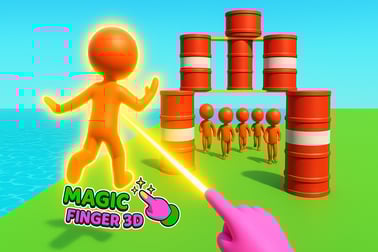
Magic Finger lets you use your magic touch to toss aliens, trigger explosions, and control the battlefield in a fun physics action game.
Magic Finger
Introduction to Magic Finger
Magic Finger is a fast-paced physics based casual game where a single magical touch can launch enemies into the air, blow up barrels, and clear an entire arena of aliens. Played right in your browser as a WebGL action game, it mixes ragdoll physics, simple controls, and over-the-top explosions into nonstop stickman mayhem. If you enjoy tossing enemies around, chaining reactions, and mastering smart positioning, this magic touch browser game is built for you.
You play as a powerful sorcerer whose finger acts like a telekinetic weapon. Each level drops you into a 3D stickman arena filled with aliens, props, and deadly environmental hazards. Your mission is always the same: use your powers to clear the field. How you do it is entirely up to you—throw aliens at each other, lob bombs, or send them flying off platforms into the void.
Because Magic Finger runs directly in the browser on both desktop and mobile, it’s perfect for quick sessions. You can jump into a level, experiment with different tactics, and feel the immediate satisfaction of flinging enemies around with realistic physics and cartoon chaos.
Magic Finger Control Guide
Magic Finger keeps the controls extremely simple so you can focus on strategy and timing rather than complex inputs. Whether you’re playing with a mouse, touchpad, or touchscreen, your finger or cursor is your wand.
Desktop Controls (Mouse / Touchpad)
- Click and hold: Grab an alien or object in the 3D stickman arena.
- Drag: Pull enemies into the air, aim their trajectory, or reposition barrels and props.
- Release: Throw the grabbed enemy or object. Your drag direction and speed determine how far and how fast it flies.
- Click on empty space: Often used to interact with the environment or quickly change targets between aliens.
The core feel is very “drag and flick.” The more confident and snappy your swipe, the more powerful your throw. It’s a classic physics based casual game mechanic that feels immediately intuitive, even for younger players.
Mobile & Tablet Controls (Touch)
- Tap and hold: Select and lift an alien or movable object.
- Slide your finger: Aim where you want to launch your target.
- Lift your finger: Release and watch the alien fly, collide, or tumble off the platform.
Touch controls feel especially natural here, since Magic Finger is literally about your “magic touch.” On smaller screens, the game usually helps with generous hitboxes and slightly assisted aiming so your throws feel satisfying instead of frustrating.
Basic Control Tips
- Short drags are best for controlled throws and quick nudges off edges.
- Long, fast drags add power and distance—great for smashing aliens into explosive barrels.
- Always aim slightly above where you want the alien to land; gravity will pull them down into the target zone.
Magic Finger Features
While Magic Finger is easy to pick up, it packs in several features that keep this WebGL action game fresh and replayable.
Key Features
- Physics driven gameplay: Every throw, collision, and fall uses dynamic physics. Aliens tumble, bounce, and react differently depending on where and how hard you toss them.
- 3D stickman arena combat: Levels play out in compact arenas packed with platforms, gaps, ramps, and hazards, making positioning and angles matter.
- Creative alien battle online: Each level is a mini alien battle online challenge, where you experiment with the environment instead of just hammering attack buttons.
- Explosive objects: Barrels, bombs, and other props create chain reactions. One well-placed throw can clear half the aliens in a single blast.
- Progressive difficulty: Levels start simple, then add more enemies, armed aliens, larger arenas, and tougher layouts.
- Accessible yet skill-based: Anyone can grab and throw, but mastering momentum, timing, and combo throws is what separates casual players from true magic masters.
Together, these systems turn Magic Finger into more than just a silly ragdoll toy. It becomes a light strategy puzzle where you’re constantly thinking: Which alien do I throw first? Can I hit that barrel? Can I make them collide midair?
Performance & Troubleshooting
Because Magic Finger runs as a WebGL action game in your browser, performance mostly depends on your device, browser, and internet connection. Here’s how to keep the game running smoothly.
Recommended Browser Setup
- Use a modern browser: Chrome, Edge, Firefox, or Safari with WebGL enabled.
- Close extra tabs: Too many open tabs or background downloads can cause frame drops or stutters.
- Disable heavy extensions: Ad-blockers and script blockers sometimes interfere with Unity WebGL games; try whitelisting your gaming site if the game fails to load.
Common Issues & Fixes
- Game won’t load or stuck on black screen:
- Refresh the page and wait a bit longer—the first load of a 3D stickman arena can take time.
- Clear browser cache, then reload.
- Check that hardware acceleration and WebGL are enabled in your browser settings.
- Laggy or choppy performance:
- Lower your screen resolution or zoom level to reduce rendering load.
- Close streaming apps and other CPU-heavy programs.
- On laptops, plug into power and switch to a “High performance” power mode.
- Touch input not detected on mobile:
- Rotate your device (portrait vs. landscape) if the layout appears stuck.
- Refresh the page and ensure you’re not in a low-power browser mode that blocks scripts.
If you’re still having trouble, switching to another supported browser on the same device often fixes WebGL action game issues instantly.
Is Magic Finger Safe to Play Online?
Magic Finger is designed as a family-friendly physics based casual game with simple, cartoon-style violence. Aliens and stickmen get thrown, fall off edges, and explode, but there’s no realistic blood, gore, or disturbing imagery.
Safety & Content
- Violence style: Slapstick, physics-based tossing and explosions with low-poly models. It looks more like action comedy than serious combat.
- No chat or messaging: As a single-player browser title, there’s typically no player-to-player chat, reducing exposure to harmful language or harassment.
- Ads: Depending on the hosting site, short ads may appear before or between levels. Children should be reminded not to click unknown external links or download anything prompted by third-party ads.
Parents looking for a light, action-focused magic touch browser game will generally find Magic Finger appropriate for older kids and teens who are comfortable with cartoon fighting and explosions.
How to Play Magic Finger and Control the Battlefield
Winning in Magic Finger is all about using your environment and physics to your advantage. Your magic finger doesn’t just grab aliens—it controls the whole arena.
Step-by-Step Gameplay Flow
- Survey the arena: Before grabbing anything, quickly scan for explosive barrels, high ledges, narrow bridges, and clusters of aliens.
- Pick a priority target: Armed aliens, groups standing near barrels, or enemies close to edges should be your first picks.
- Grab and aim: Click/tap and drag your target upwards and slightly back to build momentum, then swing in the direction of other aliens or hazards.
- Release at the right moment: Time your throw so the arc lands in the middle of a group of enemies or directly onto a barrel or bomb.
- Chain your throws: As soon as one alien is flying, grab another to keep the battlefield under control and prevent enemies from spreading out.
Treat every level like a mini puzzle. The smartest throws usually beat brute-force tossing. For example, a single alien thrown into an explosive barrel can clear several enemies at once, making it more efficient than throwing them one by one off the platform.
Using the Environment
- Edges & cliffs: The quickest win condition in many stages is to send aliens flying off the edge. Short, precise flicks near ledges work best.
- Platforms & gaps: Toss aliens onto unstable platforms or into narrow gaps where it’s harder for them to escape.
- Props as weapons: Some levels let you grab non-enemy objects (like crates or bombs) and turn them into improvised projectiles.
Once you think of the arena as your weapon, you’ll start winning levels faster and with far fewer throws.
Tips and Tricks to Defeat Aliens with Your Magic Touch
To truly master this alien battle online experience, you’ll need more than just basic aim. These tips help you squeeze maximum power out of your magic finger.
Combat & Strategy Tips
- Go for groups first: Always check where aliens are packed tightly and plan throws that hit multiple enemies or trigger explosions in the middle of crowds.
- Target armed aliens early: As levels progress, some aliens may fire back or present more danger. Remove them first to keep the battlefield safer.
- Use enemies as ammo: Instead of throwing a crate at an alien, throw an alien at the crate that’s near others—double the impact for one action.
- Keep enemies off-balance: Repeatedly throwing or bumping the same alien makes it harder for them to move into advantageous positions.
Advanced Physics Tricks
- Angle your throws: Sideways throws across the arena can bounce aliens into one another, creating cascading collisions.
- Combo throws: Toss one alien upward, quickly grab another and throw them into each other midair for flashy double knockouts.
- Use vertical space: Throw enemies straight up when you need a moment to regroup—they’ll fall back down into harm’s way, often hitting others.
The more you experiment, the more you’ll discover clever ways to manipulate the battlefield. That’s the heart of a satisfying physics based casual game: turning simple rules into endlessly creative outcomes.
Game Features: Physics, Explosions, and Crazy Stickman Battles
Magic Finger stands out because it takes a simple idea—grab and throw—and pushes it to wild extremes in a 3D stickman arena.
Physics-Driven Chaos
- Ragdoll enemies: Aliens flop, twist, and spin realistically when they collide, making every throw look different.
- Variable impact: The speed and angle of your throw change how far and how hard enemies fly, so your input always matters.
Explosive Interactions
- Barrels & bombs: These are your best friends. Aim enemies into them for massive area damage.
- Chain explosions: Some levels let blasts trigger other hazards, creating satisfying domino effects.
Stickman-Style Action
- Clean low-poly art: The simple, stylized look keeps the focus on motion and impact, not visual clutter.
- Clear silhouettes: Enemies, barrels, and props are easy to spot at a glance, even on mobile screens.
All together, these elements make Magic Finger feel like a playable physics playground and a fast-paced action puzzler at the same time.
Levels, Enemies, and Power Ups in Magic Finger
As you push deeper into the game, Magic Finger steadily ramps up the challenge with new layouts and tougher enemies.
Level Design & Progression
- Early levels: Small arenas, few aliens, clear edges to knock enemies off quickly. Great for learning how throws work.
- Mid-game: Taller platforms, more props, and multiple spawn points force you to think carefully about positioning.
- Later stages: Larger arenas with varied elevation, moving threats, and enemies that can hit back or resist simple pushes.
Enemy Variety
- Basic aliens: Go down with a single good throw or explosion.
- Armed aliens: Require quick targeting and may force you to use cover or rapid-fire throws.
- Large or “tank” aliens: Might need multiple hits or well-placed environmental damage to defeat.
Power Ups & Upgrades
Depending on the version or platform, Magic Finger may include upgrades that strengthen your telekinetic grip or allow new ways to defeat enemies, such as stronger throws or enhanced environmental effects. These make higher levels feel steadily more manageable, turning your character into a true master of the arena.
Play Magic Finger Online on Desktop and Mobile
One of the best things about Magic Finger is how easy it is to jump in and play from almost any modern device. As a magic touch browser game built with WebGL, it’s made for quick, no-download sessions.
Desktop Play
- Platforms: Windows, macOS, and many Linux systems via a compatible browser.
- Best for: Players who prefer mouse precision and bigger screens for reading the arena and lining up throws.
Mobile & Tablet Play
- Platforms: Android and iOS devices through mobile browsers that support WebGL.
- Best for: Players who like direct touch controls and playing on the go, whether at home, on the couch, or during a commute.
As long as you have a stable connection and a modern browser, you can dive into alien-flinging, physics-heavy action in seconds. No large download, no lengthy setup—just open the game page and start throwing enemies around your 3D stickman arena.
Frequently Asked Questions
What is Magic Finger?
Magic Finger is a casual physics action game where you use a magic finger to throw enemies, trigger explosions, and clear each level of alien foes.
How do you play Magic Finger?
On desktop, use your mouse to click, drag, and flick enemies or objects. On mobile, use your finger to tap, hold, and swipe to throw aliens and interact with the environment.
Is Magic Finger free to play?
Yes, Magic Finger is free to play in the browser. Some platform versions may include optional ads or in-app purchases depending on where you play.
Can I play Magic Finger on mobile devices?
Yes, Magic Finger is built with WebGL and works in modern mobile browsers, so you can play on smartphones and tablets without downloading a large client.
Is Magic Finger suitable for kids?
Magic Finger features cartoon-style aliens and non-realistic action, making it generally suitable for older kids and families. Parents should still review the game content and platform rating first.