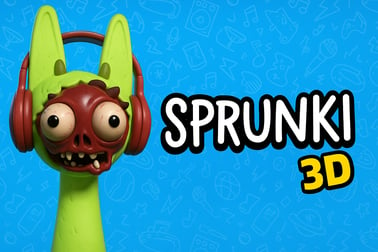
Sprunki 3d lets you build layered beats in a vibrant 3D world. Drag, drop, and remix characters, explore cute horror vibes, and share your tracks online.









Sprunki 3d
Introduction to Sprunki 3d
Sprunki 3d is a playful 3D music creation game that turns your browser into a full-on interactive sound sandbox. Instead of scrolling through flat menus, you build tracks inside a three-dimensional space packed with quirky characters, glowing props, and cute horror vibes. Every object in the scene can trigger loops, effects, or rhythm layers, letting you sculpt beats like you're walking around inside a song.
At its core, Sprunki 3d is a browser rhythm mixer: you drag, drop, and position audio sources around the scene to build up complex grooves. Because everything lives in 3D, spatial placement matters. A character closer to the "stage" might sound louder or more present, while something drifting in the background gives more subtle atmospheric layers. It feels less like clicking buttons and more like conducting a tiny, spooky-cute orchestra.
The game leans into a "cute horror audio adventure" style. The visuals are colorful and cartoony, but there are eerie shadows, glitchy effects, and off-kilter sound cues that keep things pleasantly unsettling. It's still fully family-friendly, just with a slightly haunted twist that fits the Sprunki universe.
Whether you're a beat-making veteran or just messing around for the first time, Sprunki 3d makes it easy to experiment. There are no wrong answers, no fail states, and no pressure. You simply combine characters, sounds, and effects until you've built a track you love. Then you can tweak the 3D layout, change the mood, and discover new combinations over and over again.
Sprunki 3d Controls
Sprunki 3d is designed to work smoothly in your browser with simple controls that feel natural even if you've never used a music tool before. The game focuses on drag-and-drop interactions and basic camera movement so you can stay in the flow of creativity.
Mouse & Keyboard Controls
- Move camera: Click and drag with the right mouse button to orbit around the 3D scene.
- Pan view: Hold the middle mouse button or Shift + right drag to slide the camera sideways or up and down.
- Zoom in / out: Use the mouse scroll wheel to get closer to characters or pull back for a full-stage view.
- Select character or object: Left-click on any character, pad, or prop to highlight it.
- Place characters: Drag characters from the bottom or side bar into the 3D play area.
- Remove character: Drag a character off the stage or onto a trash / X icon, or press Delete when it's selected (depending on the specific build you're playing).
- Toggle loop or sound: Click a character already on the stage to mute/unmute or switch through variations, if supported.
- Play / Pause full mix: Click the Play/Pause button, usually located near the bottom center or top right of the UI.
Optional Keyboard Shortcuts
Some Sprunki 3d builds or mods add extra shortcuts to streamline the experience:
- Spacebar: Start or stop the main playback.
- Number keys (1–9): Quick-select character groups, preset scenes, or pattern banks.
- R: Reset the scene, clearing all characters and sounds.
- Esc: Open the in-game menu or settings overlay.
You don't need to memorize everything to enjoy the game. Sprunki 3d is forgiving: move the camera, drop in a few characters, hit play, and you're already making music.
Sprunki 3d Features
Sprunki 3d packs a surprising amount of depth into a browser-based music toy. It balances accessibility with creative flexibility, making it enjoyable for both casual players and aspiring beat makers.
- Fully 3D sound playground: Build beats in a spatial, 3D environment rather than a flat grid, turning your mix into a visual sculpture.
- Character-based sound design: Each character usually represents a specific loop, instrument, or sound effect, from drums and bass to synth stabs and creepy whispers.
- Interactive sound sandbox: Swap characters in and out, move them around, and stack them into layers to discover new combinations without any rigid "right way" to play.
- Cute horror aesthetic: Enjoy a blend of cozy cartoon design and light horror elements – flickering lights, eerie backgrounds, and strange yet lovable creatures.
- Loop-based composition: Mix synchronized loops that lock to a shared tempo, so your track always stays on beat.
- Gradual build-up of complexity: Start with a simple drum loop, then add bass, chords, vocal chops, and FX until you've got a full track.
- Browser-based convenience: No downloads or installs are required; Sprunki 3d runs directly in modern browsers.
- 3D beat making online: Adjust positioning, depth, and sometimes height for characters to create subtle changes in how your mix feels.
- Family-friendly exploration: There are no jump scares or graphic content, making it appropriate for younger players who like slightly spooky themes.
Together, these features make Sprunki 3d stand out from traditional music tools and standard rhythm games. It feels like a toy box for sound, built for play first and polishing later.
Performance & Troubleshooting
Because Sprunki 3d is a 3D music creation game that runs in your browser, performance depends heavily on your device and browser setup. Here are practical tips to keep everything running smoothly.
Recommended Browsers
- Google Chrome (latest version) – Best overall performance and WebGL support in most cases.
- Microsoft Edge (Chromium-based) – Similar performance to Chrome; also a strong option.
- Mozilla Firefox (latest version) – Works well, but 3D performance can vary by system.
Make sure hardware acceleration is enabled in your browser settings so the 3D scene can use your GPU efficiently.
Common Issues & Quick Fixes
- Game not loading: Clear your browser cache, disable aggressive ad blockers or script blockers on the page, then refresh. Ensure JavaScript is enabled.
- Black or blank 3D window: Update your graphics drivers, restart the browser, or try a different browser to rule out WebGL issues.
- Audio stutters or crackles: Close other tabs or apps that use significant CPU, lower in-game quality settings if available, and avoid streaming or heavy downloads while playing.
- Lag with many characters: Remove a few characters from the 3D scene, or lower resolution and effects in Sprunki 3d's options if the build includes a settings menu.
- Inputs not responding: Click directly on the game frame to refocus it, then try your keyboard or mouse again. Some browsers require user interaction before audio can start.
When to Lower Settings
If you're on an older laptop or a low-end device, it may help to:
- Reduce render quality or effects in the game (if sliders or toggles are available).
- Play in a smaller browser window instead of full-screen.
- Close streaming services, heavy downloads, or background games.
These small tweaks can make Sprunki 3d feel much more responsive, especially when your 3D stage is packed with sound sources.
Is Sprunki 3d Safe to Play Online?
Sprunki 3d is typically hosted on established browser gaming and fan platforms and aims to be safe and accessible for a broad audience. While every hosting site is different, here are general points about safety and content.
Content & Age Friendliness
- Visual style: Cartoonish 3D characters and environments, often with a gentle horror twist (eerie lighting, spooky eyes, glitch effects) but without graphic imagery.
- Audio content: Abstract vocals, sound effects, and musical loops. No explicit language or adult themes in the core experience.
- Gameplay: Creative mixing and exploration only; no violence, jumpscares, or competitive pressure.
This makes Sprunki 3d generally suitable for teens and older kids, especially those who enjoy slightly creepy but playful aesthetics.
Online & Browser Safety Tips
- Play Sprunki 3d on trusted websites that you recognize or that are recommended by reputable game hubs.
- Avoid downloading extra files or "patches" from unknown sources; the game is meant to run directly in your browser.
- Use up-to-date security software and keep your browser updated.
- If a host page shows intrusive pop-ups or suspicious ads, close the tab and find an alternative site.
As long as you stick to legitimate platforms, Sprunki 3d is a safe, creative way to explore music and 3D rhythm mixing online.
Dive Into a 3D Music Playground: What Makes This Remix Experience Unique
Most browser music games limit you to flat timelines or lane-based rhythm inputs. Sprunki 3d breaks that mold by giving you a full 3D music playground where sound and space are tightly connected. Instead of editing a track from above, you're effectively walking around inside your composition.
The big twist is how visual placement changes the vibe of your mix. Clusters of drum characters near the center create an intense, driving groove. Spread them out, and the rhythm feels more open and airy. Move a spooky vocal to the back of the scene and it becomes a distant echo, more texture than spotlight. This spatial logic turns the game into a low-pressure lesson in basic mixing and sound staging without using technical studio terms.
Because Sprunki 3d is an interactive sound sandbox, there's no fixed goal or score. You choose how wild or minimal you want your tracks to be. Some players go for dense, glitchy chaos with every character active, while others prefer sparse ambient soundscapes with just a few voices echoing in the 3D world.
This flexibility, combined with the charmingly unsettling art direction, makes Sprunki 3d feel like a toy, an instrument, and a tiny virtual concert stage all at once.
How to Create Layered Beats in a Fully 3D Sound Space
Building satisfying tracks in Sprunki 3d is less about music theory and more about experimenting with layers and positions. Here's a simple approach if you're just starting out in this 3D music creation game.
1. Start With a Solid Foundation
- Drop in drum characters or rhythm loops first. They act as your tempo anchor.
- Position them near the center of the stage so their impact feels strong and clear.
- Hit play and listen until the basic groove feels comfortable.
2. Add Bass and Low-End Support
- Choose 1–2 bass or low synth characters.
- Place them slightly behind or beside your main drums to avoid overcrowding the same visual spot.
- Avoid stacking too many low-frequency sounds at once; it can make your mix feel muddy.
3. Sprinkle Melodies and Chords
- Introduce melodic characters (keys, bells, pads, or vocal hooks).
- Spread them around the mid and upper parts of the scene so they feel like they're swirling above your rhythm section.
- Listen for repetition. If two loops clash, try turning one off or repositioning it.
4. Use Atmosphere for Depth
- Add subtle ambient characters or creepy FX at the edges or farther back in the 3D space.
- Keep these quieter and spaced out; they're there to add depth and mood rather than dominate the groove.
5. Adjust the Spatial Mix
- Move characters closer together for an intense, compact sound.
- Spread them out for a wider, more relaxed feel.
- Experiment with height (if supported) to make some sounds feel "above" or "below" the listener.
By following these steps, you'll turn Sprunki 3d's 3D beat making online into something that feels almost like conducting: shifting performers around the stage until the entire ensemble clicks together.
Controls, Tips, and Tricks for Building Your First 3D Track
Once you're familiar with the basic controls, you can start using small tricks to create more polished results in Sprunki 3d.
Creative Tips for New Players
- Limit your palette: Stick to 5–8 characters at first. This makes it easier to hear what each one contributes.
- Mute to discover: One by one, mute characters while the mix plays. If muting something makes the track sound cleaner, consider leaving it out or moving it.
- Use symmetry: Place similar sounds on opposite sides of the scene to create a balanced stereo feel.
- Build in stages: Start with drums, add bass, then melody, then FX. Resist the urge to drop everything in at once.
- Play with density: Have sections where only a couple of characters play, then gradually ramp up to full intensity.
Workflow Tricks
- Zoom and inspect: Zoom in on individual characters to remember what they sound like, then zoom out to hear the full mix.
- Group by color or type: If certain characters look visually similar, use that to create "sections" of your orchestra.
- Save your favorites (if supported): Some builds may let you save scenes or presets. Use this to keep your best mixes for later tweaking.
With these tips, your first 3D track becomes less of a random experiment and more of a guided journey toward a satisfying, layered composition.
Cute Horror Vibes and Visual Effects in the Sprunki Universe
One of the standout elements of Sprunki 3d is its unique mix of adorable and unsettling. The game's "cute horror" energy comes through in both sound and visuals, giving your sessions a distinct mood that you won't find in typical music tools.
Character Design
- Characters often have big, expressive eyes, simple shapes, and exaggerated animations.
- Subtle details – cracks, dark rings around eyes, glitchy limbs – add just enough creepiness to keep things interesting.
- Each design hints at its sound: spikier shapes for harsher FX, soft blobs for pads or atmospheres, and quirky creatures for vocals.
Environmental Effects
- Lighting: Dim rooms, colored spotlights, and glowing props that pulse in time with the music.
- Backgrounds: Slightly warped environments, fog, or subtle motion that makes the scene feel alive.
- Glitches & overlays: Occasional visual flickers or distortions that match the off-kilter audio style.
Because Sprunki 3d leans into this aesthetic without going full horror, it hits a sweet spot: spooky enough to feel special, but still welcoming and fun to explore for most players.
Browser Requirements and Performance Settings for Smooth 3D Play
To get the best experience from Sprunki 3d's 3D music engine, it helps to know what your browser and device should support. This ensures your interactive sound sandbox stays fluid and responsive, even when your stage is full.
Minimum Device Guidelines
- CPU: A modern dual-core processor or better.
- RAM: At least 4 GB (8 GB recommended if you like to keep many tabs open).
- GPU: Integrated graphics from recent years or any entry-level dedicated GPU.
- OS: Updated versions of Windows, macOS, or a modern Linux distro.
Recommended Browser Settings
- Enable hardware acceleration in your browser settings.
- Keep your browser on the latest version for the best WebGL and audio support.
- Allow autoplay with sound or interact with the game once to unlock audio if your browser blocks it.
In-Game Performance Options
Depending on the version of Sprunki 3d you're playing, you may see options such as:
- Graphics Quality: Low, Medium, High – lower this if frame rate drops when many characters are active.
- Post-Processing Effects: Toggles for bloom, depth of field, or motion blur – disabling them can significantly improve performance.
- Resolution Scale: Rendering the 3D scene at a smaller internal resolution improves speed at the cost of sharpness.
Tuning these sliders for your hardware helps keep Sprunki 3d smooth and responsive, so your creative focus stays on the music rather than on performance hiccups.
Frequently Asked Questions
What is Sprunki 3d?
Sprunki 3d is a browser-based music game where you place characters in a 3D space to build layered beats, rhythms, and soundscapes with playful visual effects.
Do I need to download anything to play Sprunki 3d?
No download is required. You can play Sprunki 3d directly in a modern web browser that supports 3D graphics, such as Chrome, Edge, or Firefox.
Is Sprunki 3d kid-friendly?
Yes, Sprunki 3d is designed to be family-friendly. It features colorful visuals and light spooky themes without graphic content, making it suitable for most ages.
Can I create my own music in Sprunki 3d?
Yes. Each character represents a different sound or loop. By dragging and arranging them in 3D, you can build custom tracks, experiment with timing, and remix your own songs.
What controls are used in Sprunki 3d?
You typically use the mouse to drag and drop characters, rotate the 3D scene, and interact with elements. Some versions also support keyboard shortcuts for camera movement.